Built for solopreneurs, lifelong learners, and thinkers.

Your thinking has many threads.
Give each one room.

Explore ideas, develop your work, and keep moving. Your conversations, sources, notes, and next steps belong together.

Explore ideas

Follow a question, compare approaches, and give promising tangents room.

Develop your work

Check the source, connect what you learn, and put it into your own words.

Keep moving

Keep your notes, conversations, and next steps connected from day to day.

Model choice

Choose the AI for the work in front of you.

Use supported GPT, Claude, and Gemini models in the same workspace. A quick question and a difficult analysis don’t always need the same approach.

  • Choose a model for each conversation
  • Switch models as your question develops
  • Keep the conversation and its branches together

Model access is through SideQuestly; it does not include every feature of a provider’s separate app or subscription.

One account.
More than one way to think.

GPTClaudeGemini

Lighter models suit quick questions. More demanding analysis, coding, or research can call for more capable models and more credits. Check the model picker for current availability.

Understand plans and credits →

Not another everything app.

Your mind is a tree, not a waterfall.

Four things SideQuestly does differently from the AI chats and note apps you already use.

Native branching · first-class UI

Branch from a sentence, not just a message.

Something in an answer catches your eye. Select it and follow that thread in its own conversation, right beside the one you’re in.

  • Branch from any selection or any message
  • Branches stay nested in a tree next to the original chat
  • A gutter marker stays beside the passage you branched from
  • Hover to highlight the source text; click to reopen the branch
  • Jump back to the exact passage a branch started from

In most AI chats, a branch is a copy of the whole conversation, filed away as one more chat.
Explore native branching →

Journal

An infinite journal where every day remembers.

Your days sit on one continuous page. Scroll back to last Tuesday and see what you wrote, what was due, and what you talked through.

  • Yesterday is right below today — no new button, no loading screen
  • Today shows what’s due; previous days keep their notes and chats
  • See every chat you had on or about that day
  • Notes you took inside a chat or a PDF still show up under their day

In most note apps, a daily page only knows what you typed on it.

Outliner

Write in a real outliner. Your AI chats live in it.

Headings, tables, quotes, images and to-dos, in bullets you can fold, move and zoom into. Mention a chat like any note, and ask AI from the line you’re on.

  • Link notes, chats, documents and days inline with @
  • Focus on any node to work on one idea and its children, then step back out
  • Ask AI from any bullet, and the note keeps a link to that conversation
  • A note shows every chat that came out of it

In most apps, your AI chats and your notes live in separate places.

Reading

Read the source, not a summary of it.

Open PDFs and saved web pages right next to your notes. Highlight as you read, ask about a passage, and check answers against the page they cite.

  • PDFs and web pages open in the app, with highlights and a notes pane
  • Answers cite their pages, and one click takes you there
  • Turn any passage into a question, a task or a note

Most AI tools read the file for you and hand back text.

Thinking

A thinking tool, not a dumbing-down device.

Hand over the thinking and you keep the answer, not the understanding. SideQuestly is arranged the other way round — your writing and your layout come first, and the AI works on what you put there.

Writing

Long-form writing, in a real outliner.

  • Headings, quotes, tables, code and images — in bullets you can fold, move and zoom into.
  • Zoom into a single bullet to work on one idea at a time, then step back out.
  • Answers don’t rewrite your page: what reaches your notes is what you capture, with a link back to where it came from.

In most AI chats, the only long piece of writing on the screen is the AI’s.

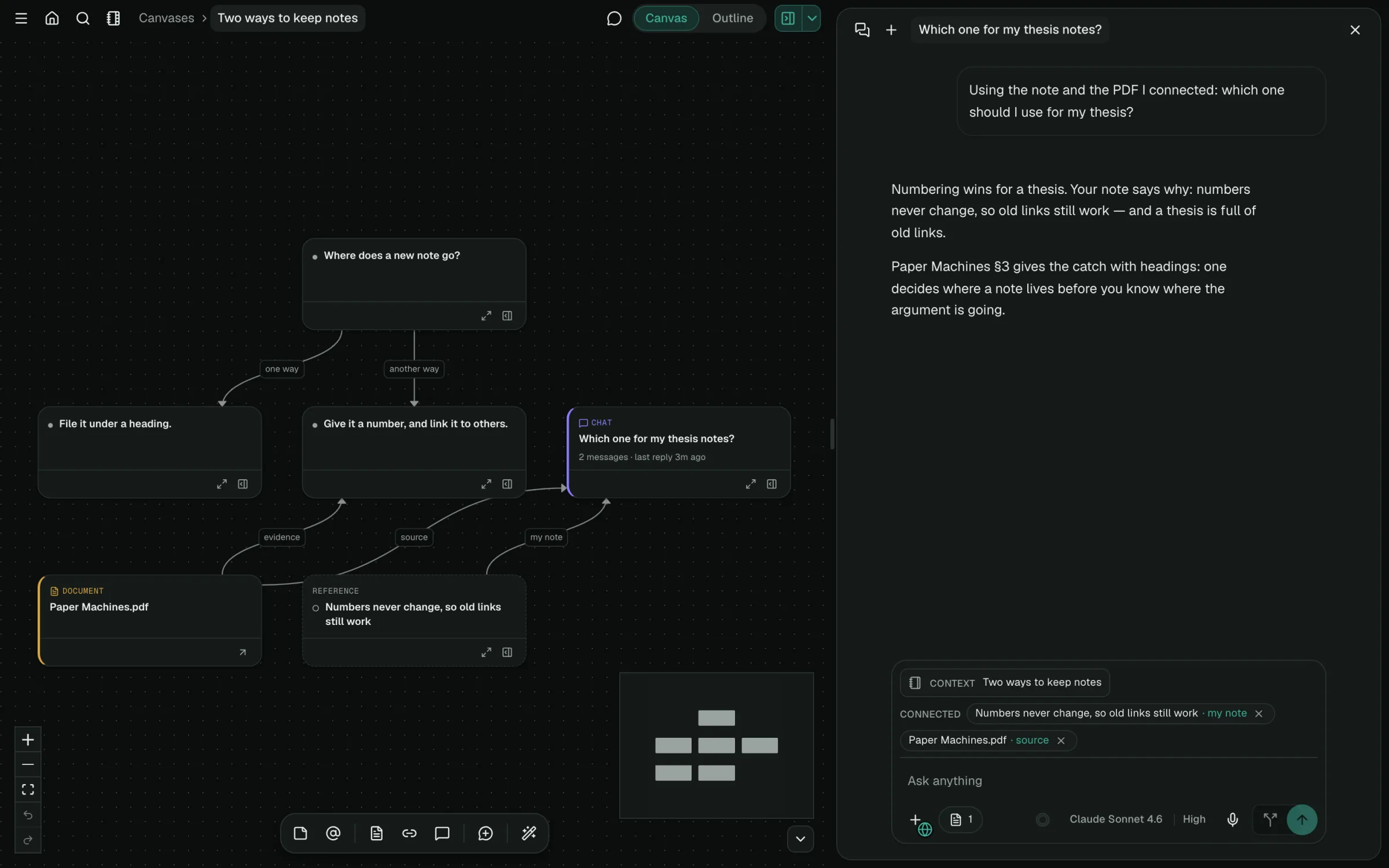
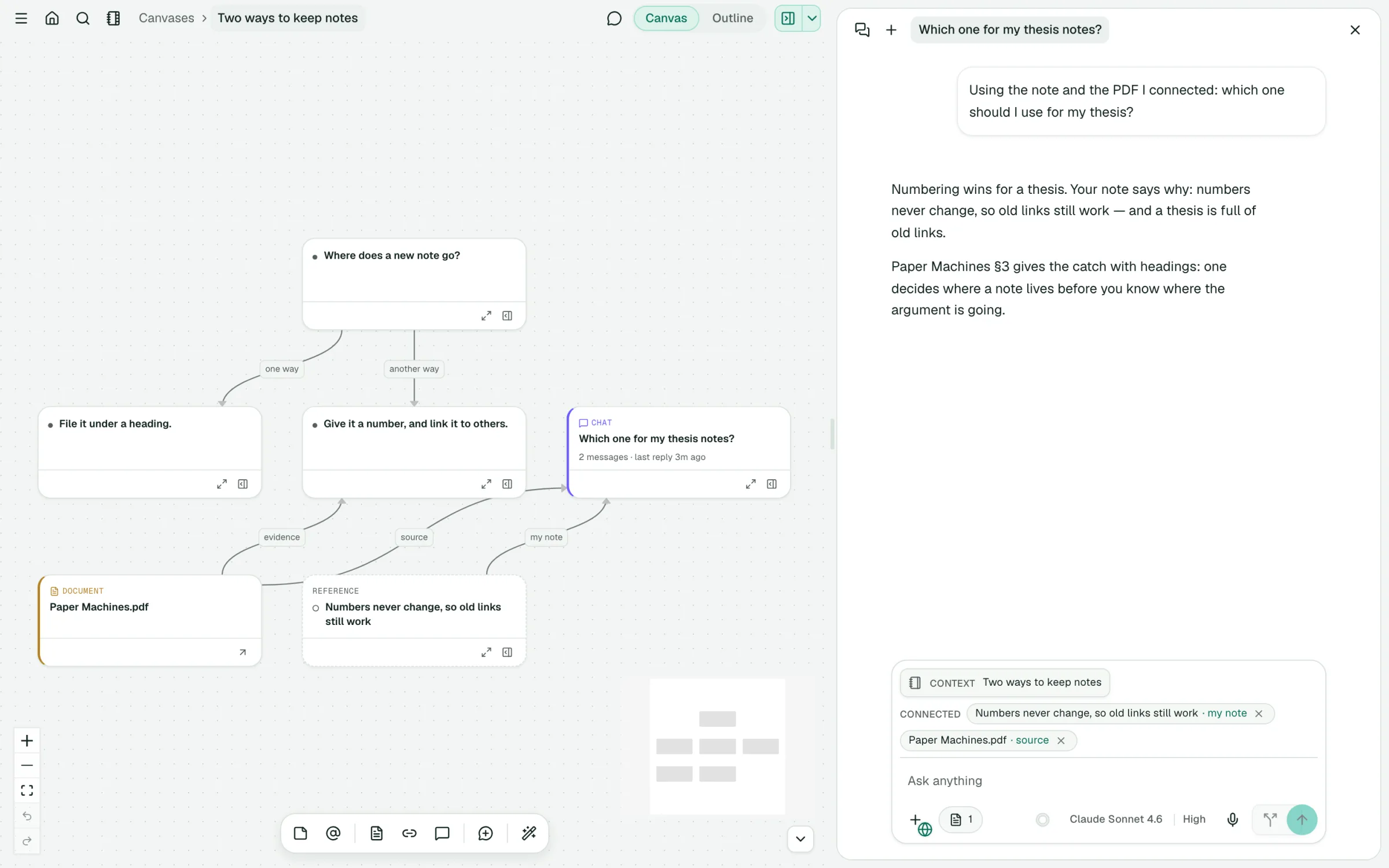
Canvas

Lay out how the ideas connect.

  • Cards are references, not copies — a note on a canvas is the same note as the one in your journal.
  • Draw arrows between cards and label them, so the relation is in your words.
  • A chat card reads exactly the cards you connected to it, using your labels as the relation.

Most AI tools hand back a finished structure. The arrangement is theirs, not yours.

A canvas of cards from one reading thread, joined by labelled arrows, with its chat open beside the board — the question asked, the answer, and the cards wired into that chat listed as its contextA canvas of cards from one reading thread, joined by labelled arrows, with its chat open beside the board — the question asked, the answer, and the cards wired into that chat listed as its context

Memory & context

You decide what it remembers, and what it sees.

Memory you can inspect, correct and restore, and conversations that tell you what went into an answer.

Memory

Remember one sentence without adding a word to the chat.

  • Select a passage, say exactly what to keep, and save it. Nothing is added to the conversation.
  • Already have something similar? See both and keep them separate, update the old one, or replace it.
  • It saves only what you ask it to. Everything it notices waits for your OK, and replaced memories stay restorable.

Most AI chats save memories on their own as you talk. You can delete one, but not bring it back.

Context

See what an answer was built from, and what didn’t fit.

  • When a chat draws on your notes, a context step lists what went in and what was left out.
  • A ring shows how full the conversation is. Near the limit, trim older search results or branch into a fresh one.
  • Workspace instructions and notes shape every chat in that workspace.

Most AI chats never show how full a conversation is. Older parts quietly stop counting.

Flexibility

Capture a thought. Find it when you need it.

⌘P opens Quick add wherever you are in the app. Write a note, keep its outline, and use Add to today when you’re ready.

⌘K opens the palette; switch to Find to search your notes, chats, messages, and workspaces. Pick up the thought with its context intact.

Use Ctrl+P and Ctrl+K on Windows and Linux.

And the everyday parts, done properly.

Tasks that live in your notes

Statuses, due windows, repeats and projects, and each day shows what’s due.

Tags that become tables and boards

Give a tag fields, then see its notes as a table, cards or a kanban board.

Related chats

Past chats on the same topic surface as you work, so you reopen one instead of asking again.

Find anything with ⌘K

One search across your chats, messages, notes and workspaces.

Start with one question. See where it branches.

Free to start, and it runs right in your browser.